

Your course content can be excellent — genuinely well-structured, thoughtfully recorded, exactly what your students need — and they’ll still drop off before they finish it.
Not because it wasn’t good enough, but because somewhere in the middle, they lost their sense of momentum. They stopped feeling like they were getting anywhere.
Students don’t quit because they’re not interested. They quit because self-paced learning asks a lot of them — and without something showing them how far they’ve come, the end feels like it’s always the same distance away.
That’s exactly what progress tracking is for. And if you’re building your course in AccessAlly, you have more control over how to show it than most platforms will ever give you.
Visible Progress Tracking Moves Students Forward
Putting a progress bar or checklist in your course isn’t just a design decision — it changes the experience of being a student in measurable ways:
- It breaks overwhelm before it sets in. A full course can look like a lot when a student is staring at it from the beginning. Visible progress makes the experience feel measurable — lesson by lesson, module by module — instead of one large, indefinite commitment.
- It builds momentum. A progress bar that’s 85% complete is psychologically hard to walk away from. There’s something about seeing exactly how close you are to finishing that makes “just a little further” feel more achievable than starting fresh ever does.
- It creates wins along the way. Checking things off a list just feels good — and when a student sees their progress bar fill up or a percentage tick higher, that little hit of satisfaction is usually enough to keep them going instead of closing the tab.
- It keeps students oriented without you. In a self-paced environment, no one is telling students where they are or nudging them to keep going. Progress displays do that automatically. Students log in and immediately know what they’ve done, what’s next, and how much is left.
- It makes it easier to come back after a break. Students get busy. Life happens, and sometimes a week or two slips by. A visual progress indicator tells them exactly where they left off the moment they log back in.
- It creates accountability. When students can see their own progress, they feel it when they haven’t moved. A dashboard showing 15% completion on a course they enrolled in a month ago is a gentle but real push to come back and do something about it.
- It shows in your completion rates. This is the part that matters to you as a course creator. Students who can track their own progress finish at higher rates — and that means better outcomes for them, stronger social proof for you, and a course that actually delivers what it promises.
The best part is that these benefits don’t operate in isolation — they feed each other. A student who can see their progress feels motivated to come back. A student who comes back and sees how close they are keeps going.
Progress tracking isn’t a single feature; it’s the thread that holds the whole student experience together.
How to Display Progress Tracking to Your Students
AccessAlly has several ways to display student progress, and all of it runs through its built-in ProgressAlly tool.
This is where you’ll build your Objective Lists — the checklists that tell the system what to track and when to update.
If those aren’t set up yet, that’s where you’ll need to start — because none of the displays below will have anything to pull from until your objectives are in place.
🤔 Not sure how to get those set up? This guide on building objective checklists has you covered — every objective type, explained step by step.
My 3 Favorite AccessAlly Progress Tracking Visuals:
The Objective Checklist
The checklist is both the foundation of how AccessAlly tracks progress and a display option all on its own.
When you add an objective list to a lesson page and choose to display it, students see exactly what’s expected of them on that page: watch the video, complete the worksheet, submit their notes — each item as its own checkable task.
As they work through the list, they mark items complete themselves, and that data feeds every other progress display on your site.
What I love about this progress tracker is, it makes “done” completely obvious. Students aren’t guessing whether they’ve finished a lesson — they can see exactly what’s left.
And that interactivity, actually checking things off rather than passively watching a number change, creates a stronger sense of engagement with the material.
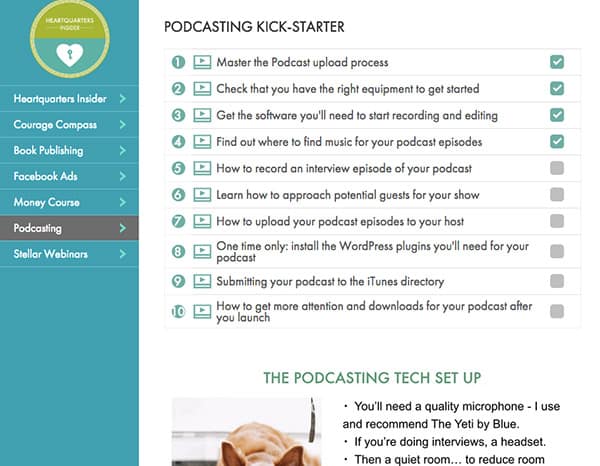
It’s worth noting that displaying the checklist is optional. You can have your objectives running in the background tracking everything without ever showing students the list itself — and just let the bar or pie chart reflect that data instead.
But for lesson-level pages, I almost always show it.
The Progress Bar
The classic choice for a reason. A horizontal bar that fills from left to right as students complete objectives — simple, immediately recognizable, and zero interpretation required. Students understand it the moment they see it.
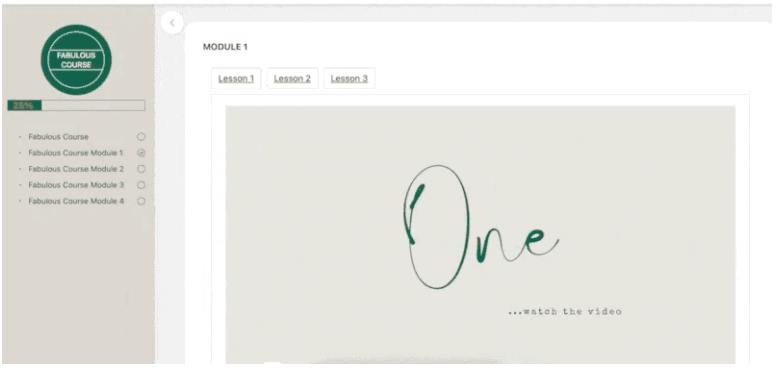
I use this most on course dashboards and module overview pages, anywhere a student needs a quick read on where they stand in the big picture before they dive into the work.
The Progress Pie Chart
Same concept as the progress bar, just in a circular format — and honestly, a little more fun. There’s something familiar about filling in a circle that a horizontal bar just doesn’t have.
Maybe it’s the grade school flashback — coloring in pie charts, counting pizza slices, and knowing that the more of that circle you owned, the better. A filling circle just feels more complete, more encouraging than a line inching to the right.
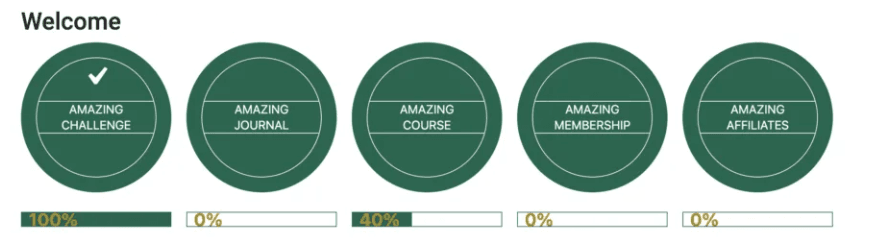
It’s also a naturally compact display, which makes it a great fit for your student dashboard — the page where students land when they log in and can see every course they’re enrolled in at once.
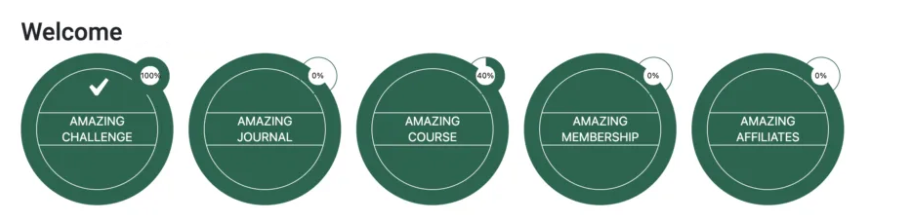
Each course gets its own pie chart overlay, so a student juggling two or three programs can see at a glance that they’re 80% through one, just getting started on another, and haven’t touched the third.
A Few More Options Worth Knowing
Not every course design calls for a graphic. Sometimes a clean line of text does the job better — and that’s exactly what the progress percentage is for.
It displays as a plain number, like “75% complete,” and works especially well in minimalist layouts or anywhere you want to add a quick progress callout without a visual taking up space.
You can also combine the total objective count and completed objective count shortcodes to deliver something more tangible.
The completion data dynamically drop into whatever words of encouragement you write around them, so your students see something like “You’ve completed 4 of 10 objectives”.
💡 And if you really want to make a moment out of it, AccessAlly integrates with PopupAlly to trigger a popup the instant a student finishes an objective list.
That means when someone completes a lesson or a full module, you can greet them with a celebratory message, a personal note of encouragement, or instructions on what to do next — automatically.
Where to Display Progress to Your Students
One of the reasons I love AccessAlly is that it doesn’t box you into a predetermined layout.
Unlike platforms that hand you a template and call it a day, AccessAlly is built on WordPress — which means you have complete control over how your course looks, how it’s structured, and how the whole experience feels for your students.
That extends to your progress tracking, right down to where and how each display shows up.
Most of these progress displays work through shortcodes, which you generate directly inside AccessAlly and drop anywhere on your site.
I already covered a few of my favorite spots above, but here are a few more places to display progress tracking where your students are sure to see (and appreciate) it:
- The Course Dashboard— This is typically the first screen students see when they log in — where their courses all live in one place. A progress visual here gives them an instant read on exactly where they stand, so they can see at a glance whether they’re almost done with one, barely started on another, or haven’t touched a third yet.
- The Course Welcome page — Before a student gets to lesson one, there’s often a welcome page waiting for them — and if you don’t have one yet, this is your sign to build it. It’s the perfect spot to share what the course is all about, what they can expect to learn, and what goals they’ll walk away with. It’s also one of the best places to show their progress in that specific course, so they know exactly where they left off and where to jump back in.
- Sidebars and widgets — WordPress opens up some placement options that other platforms just don’t have. You can drop a progress display right into a sidebar — and because it’s dynamically tied to each student’s login, what they see is always specific to them and always current. It’s a subtle but constant reminder that their course is right there waiting.
- Combined displays — Nothing says you have to pick just one. AccessAlly lets you layer progress displays however you want, so you can pair a pie chart with an objective count, a progress bar with a percentage, or any combination that makes sense for your course. A student who sees “You’ve completed 8 of 10 objectives” alongside a nearly-full pie chart gets the same message twice — that’s what I’d call a double hit of encouragement!
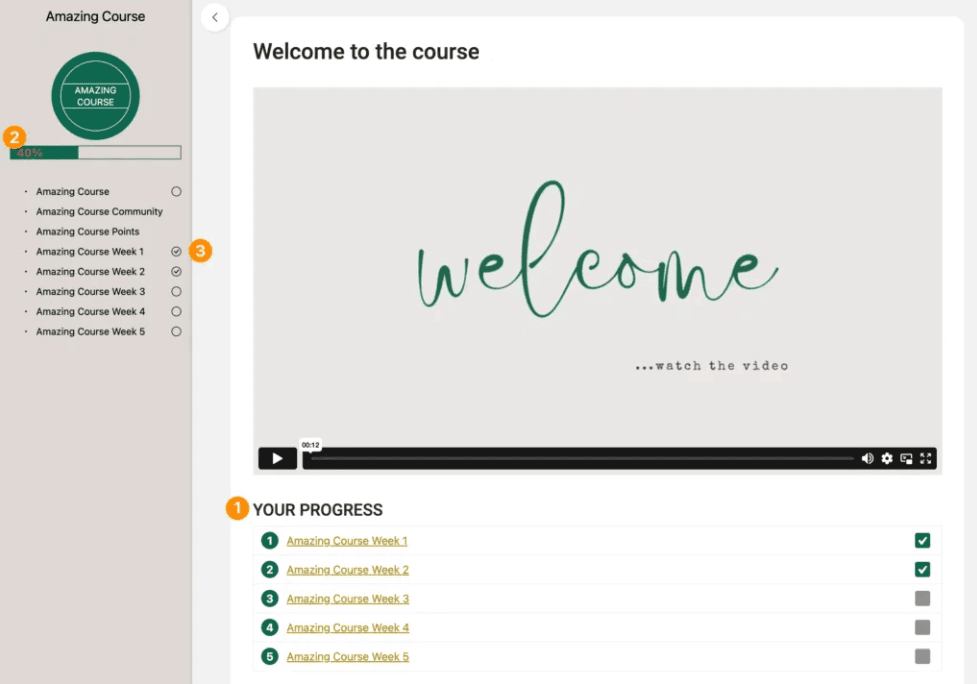
Above is a real example of what it looks like when multiple progress tracking displays are running at the same time — 1) the objective checklist, 2) the horizontal progress bar, and 3) menu completion icons all pulling from the same data, all visible in one course experience.
The bottom line is that your students should never have to wonder where they are in your course — and with AccessAlly, there’s really no reason they ever would.
Student Progress You Can See as the Course Admin
Everything above is what your students see. On the back end, you get your own version of that same data.
Inside ProgressAlly’s reporting section, you can see completion statistics across all your course pages: how many students have finished every objective on a given page, how many have only completed some, and where exactly the drop-off is happening.
Click into a specific page and it breaks down by individual objective, so you can see not just that students stopped — but where.
That drop-off data is one of the more useful things you can have as a course creator. If most of your students are getting through the first three objectives on a module but not the fourth, that’s a signal worth paying attention to.
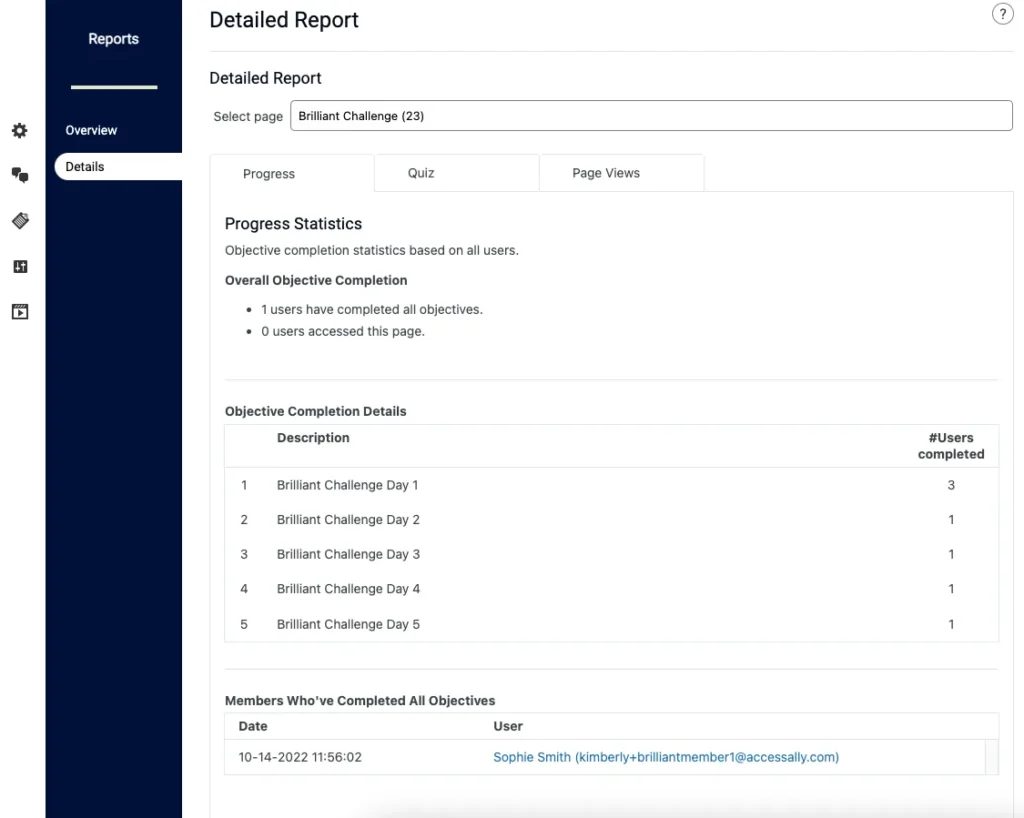
You can also pull up progress for individual students through their WordPress profiles, download full progress and activity reports as a CSV, and — if you have a team — give other instructors or moderators access to a reporting dashboard right on your site.
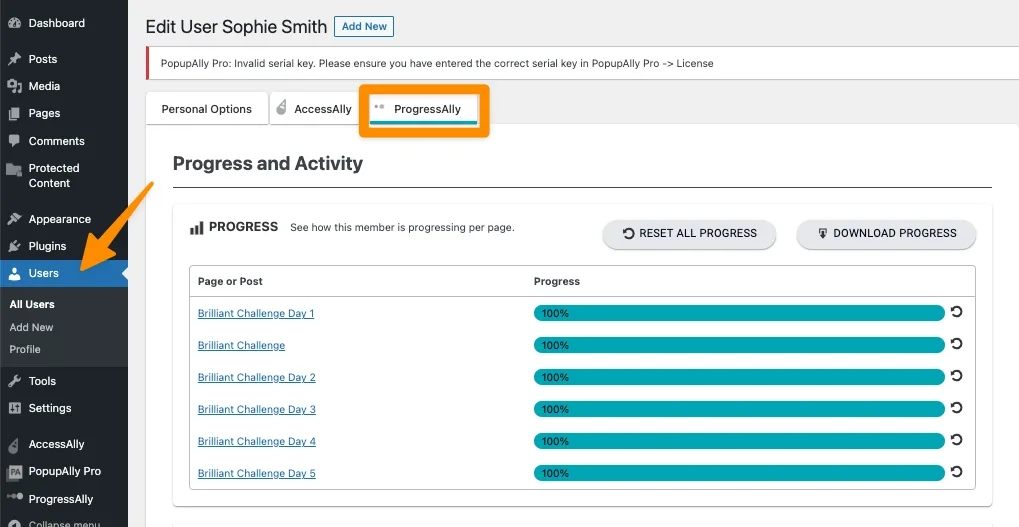
What your students experience as a motivational feedback loop, you experience as a window into how your course is actually performing.
Conclusion
Students need to see their progress in an online course— not as a nice-to-have, but as one of the most practical things you can do to keep them engaged, oriented, and actually finishing what they started.
The good news is that getting started is simpler than it sounds. Your objective list is built directly from the course content you’ve already written.
Go through each lesson or module and pull out the key actions you want students to complete — watch this video, download this worksheet, submit this note. That’s your objective list. If your course is already written, you’re more than halfway there.
From there, it’s just a matter of deciding which progress display feels right for your course and where your students are most likely to see it. You don’t have to implement everything at once — even one well-placed display changes the experience for students in a way they’ll feel every time they log in.
And while your students are using that progress data as motivation to keep going, make sure you’re doing the same on your end. The completion stats, the drop-off points, the pages where students are stopping — that’s your feedback loop too.
A course that tracks progress doesn’t just serve your students better. It tells you, clearly and specifically, whether your course is delivering on exactly what it promised.